DJ Phalanx / Production
Phalanx Master Meter
A free audio meter for your master channel. I built it while producing trance and mastering my weekly podcast, Uplifting Trance Sessions.
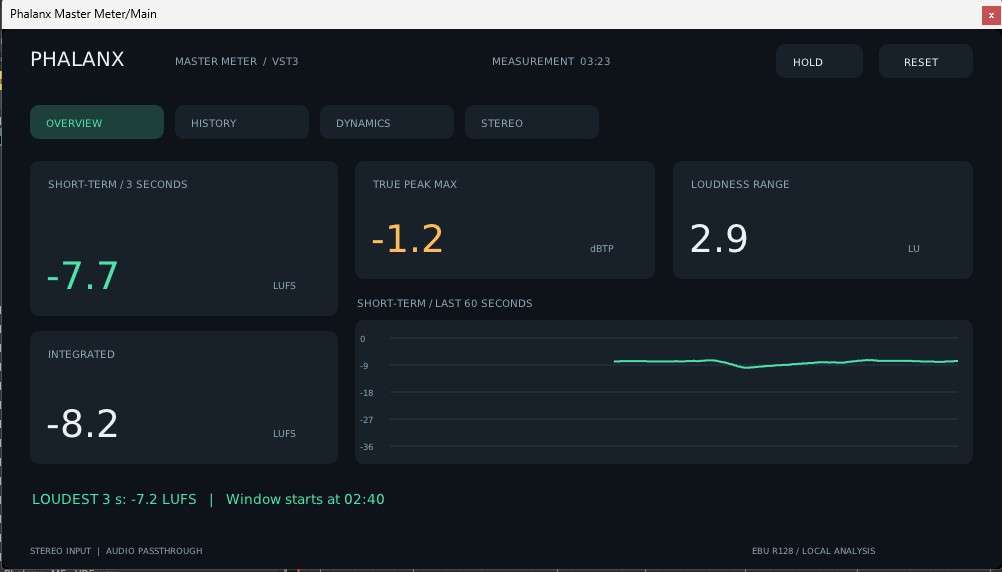
- VST edition
- 2.0.1
- Platform
- Windows
- Ableton device
- Max for Live
- Price
- Free download
From my studio
Tested on Uplifting Trance Sessions.
I spent weeks fine-tuning the metering algorithm and testing it on my own mixes. I wanted precise readings I could use when making decisions about a master.
I use it as a trance producer and as the host of Uplifting Trance Sessions. If you’re weighing up a paid meter, try this one on a mix you know well. It’s free.
If the kick and bass are fighting for space, my trance production guide shows how I work on their timing in the mix.
Listen to Uplifting Trance Sessions ↗Windows VST
Choose the VST edition for Ableton Live, FL Studio or Cubase on Windows. Load the meter on your main output after your mastering effects. My trance mastering guide explains how to check LUFS and True Peak before export.
Ableton Live / Max for Live
Master Meter for Ableton Live.
Prefer a device in Live’s own chain? Version 1.1.2 comes as a single .amxd file with the display script built in.

Compatibility and installation
Requires Live 12 Suite, or Live 12 Standard with an activated Max for Live license. This edition was tested on Windows with Live 12.4.16 and bundled Max 9. Live Intro and Lite cannot load this device.
Extract the ZIP. Drag Phalanx Master Meter.amxd to the end of your Main track, after the mastering effects. Remove or disable any earlier instance and save your Set. You can keep the .amxd in your User Library.
To see how I route Deck A and Deck B for the show, follow my podcast production workflow in Ableton Live 12.
What the four views show
Overview
Read Short-Term and Integrated loudness, maximum True Peak and Loudness Range alongside the last 60 seconds of history.
History
Compare Momentary loudness (400 ms, blue) with Short-Term loudness (3 s, green). Switch between 10, 30 and 60 seconds of history.
Dynamics
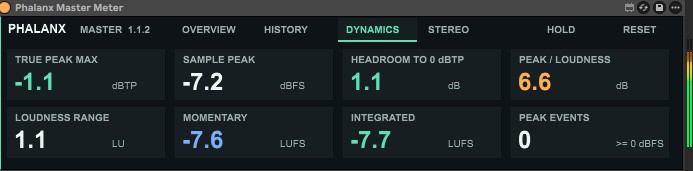
Check peaks, headroom to 0 dBTP and peak-to-loudness ratio. Consecutive report periods reaching 0 dBFS count as one peak event.
Stereo
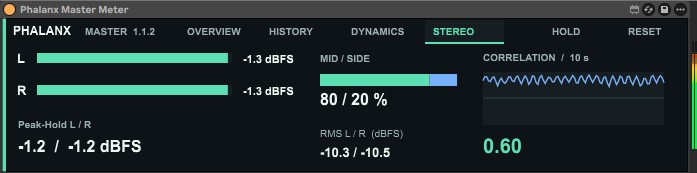
Compare left and right peaks and RMS, held peaks, Mid/Side energy shares and correlation history.
Starting a measurement
Press RESET before playback to clear the previous statistics. The device measures at its position in the chain, before the Main fader. HOLD freezes the screen while measurement continues. Press RESUME to see current readings.
Short-Term loudness needs three seconds of audio. Integrated loudness and Loudness Range need enough program material. History time runs from the last reset and can advance during transport stops while the audio engine is running.